Windows Hello (PIN) — electronic signature with identity verification
An electronic signature with identity verification requires confirming your identity on the device in the browser — with a fingerprint, face recognition or a device PIN. On Windows this is provided by Windows Hello.
Your regular Windows account password is not enough. A physical USB security key does not replace this step in the signing flow.
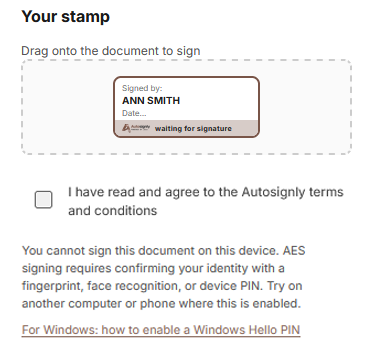
When you see the message
If the signing page shows a message that you cannot sign on this device instead of the Sign document button, the browser did not detect Windows Hello.
How to enable Windows Hello (PIN)
You only need to set up a Windows Hello PIN. Optionally you can also enable fingerprint or face recognition if your hardware supports them.
-
Open Windows Settings (
Win + I) and go to Accounts → Sign-in options.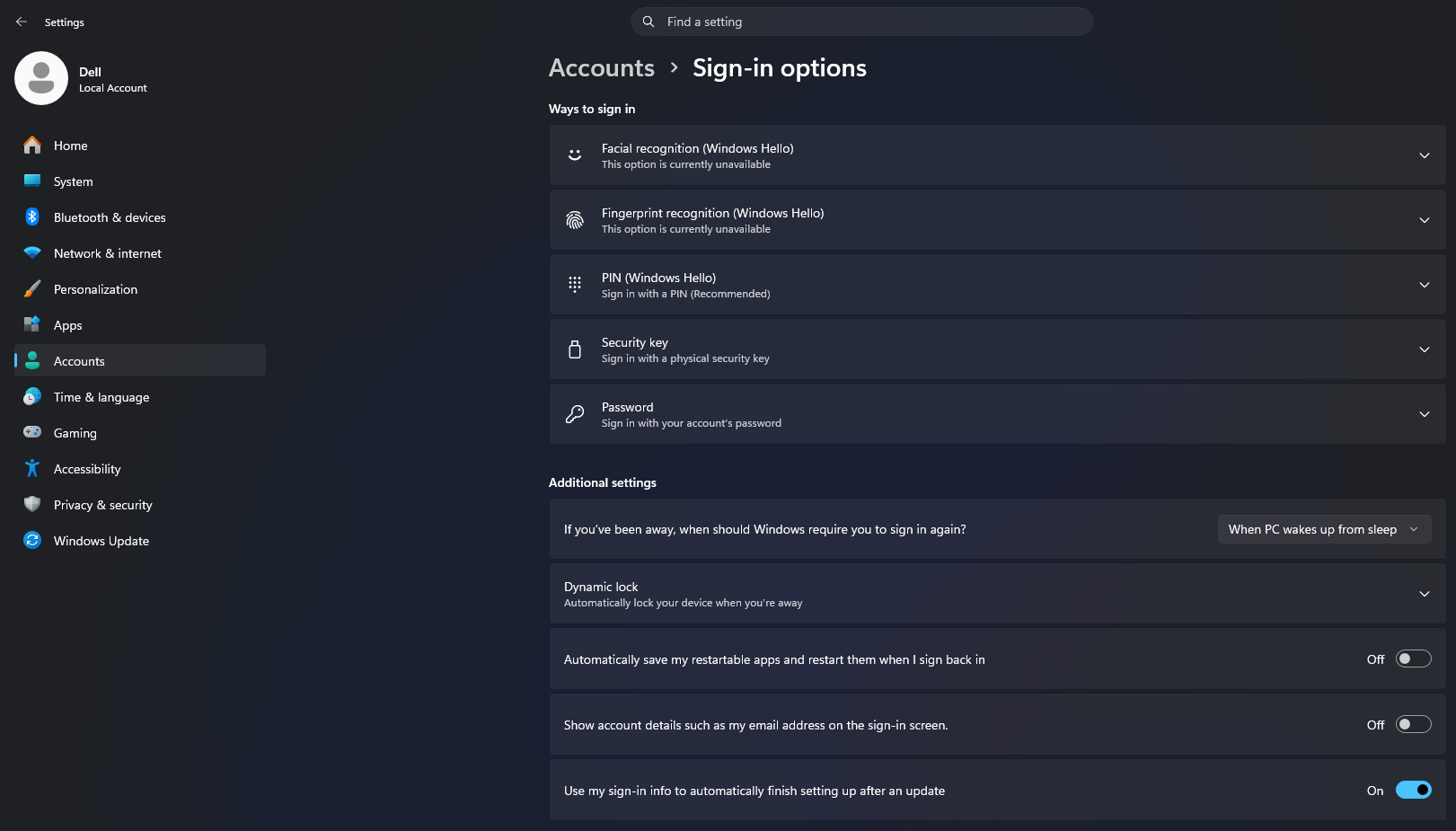
-
Under Ways to sign in, choose PIN (Windows Hello) and click Set up. If no Windows Hello option is available, first set a password under Password (Sign in using your account password), then return to PIN setup.
-
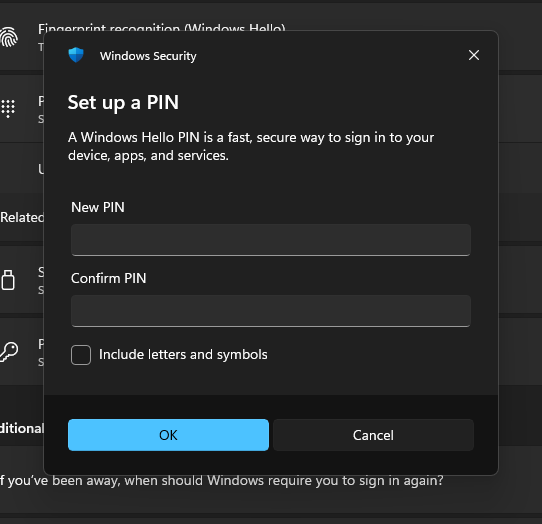
Confirm your identity with your Windows account password, then set a new PIN and confirm it.
-
Refresh the signing page — instead of the unavailable-device message you should see the Sign document button.
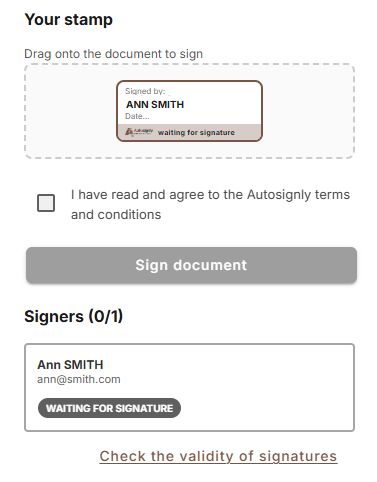
Then continue signing as described in Signing — electronic signature with identity verification.
For this signature we recommend Google Chrome or Microsoft Edge. In Firefox the unavailable-device message appears more often — even on a computer where Chrome or Edge works. In that case open the same link in Chrome or Edge.
If PIN (Windows Hello) shows “This option is currently unavailable”, restart the computer and try again. On a company PC Windows Hello may be disabled by IT policy. Signing over Remote Desktop / VM / Citrix usually will not work either — use another computer, a phone, or contact your administrator.