Documents
Documents are the core of Autosignly. You generate a document from a template or a PDF, manage it in the documents list, and send it for signature.
This section covers:
- Generating — create a document from a template or a PDF.
- Signing — route a document for signature.
- Alerts — reminders tied to documents.
The documents list
Open Documents → All documents in the side navigation. The list shows every document with its Document name, Creation date, Status, source Template and per‑row Actions.
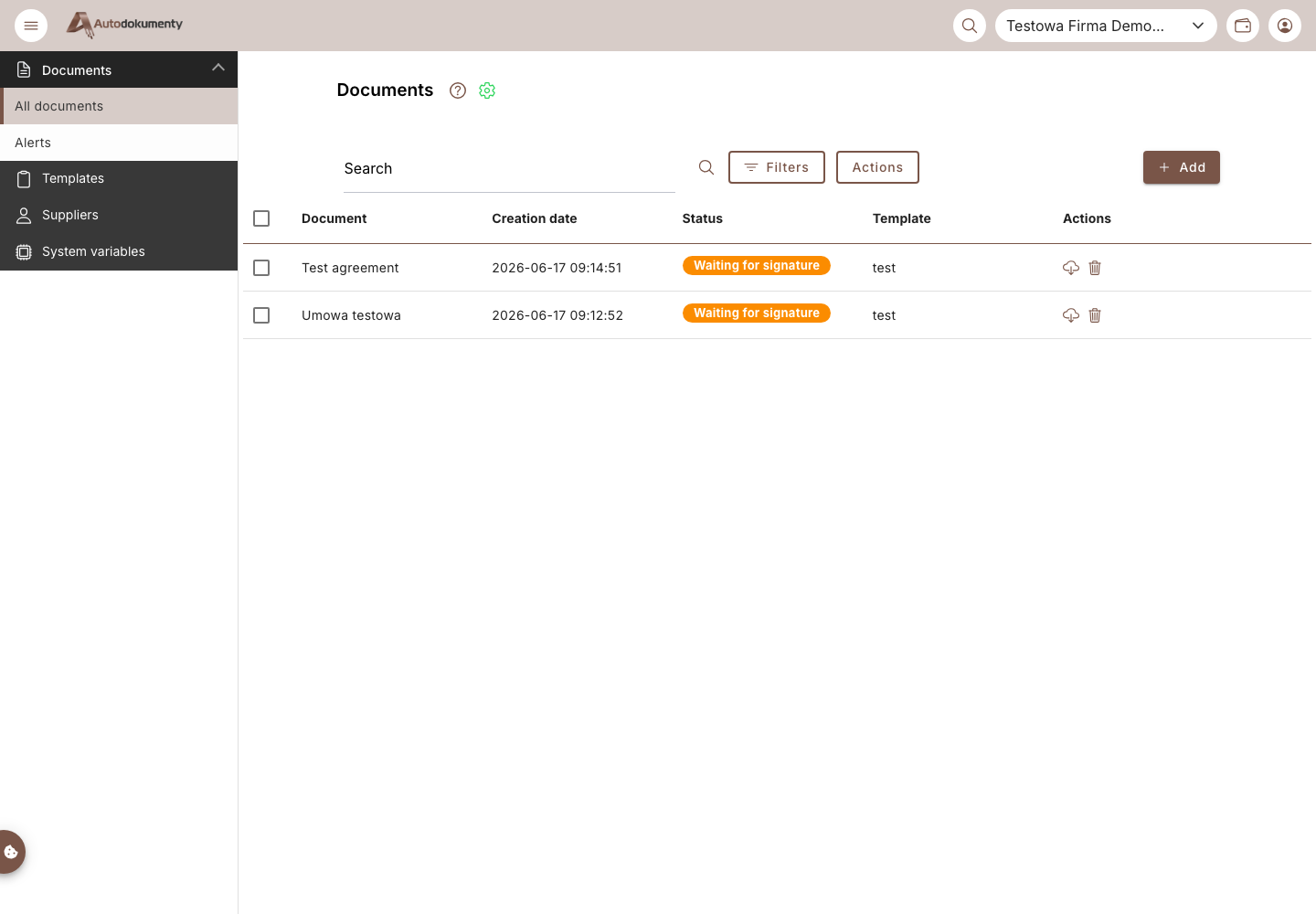
Controls on this page:
- Search — filter the list by document name.
- Filters — narrow the list (e.g. by status).
- Actions — bulk actions on the rows you tick, e.g. Delete selected.
- + Add — opens two choices: Generate from template (→ From a template) and Add PDF file (→ From a PDF).
- Per‑row actions:
- Download (cloud icon) — download the document file.
- Delete (trash icon) — remove the document.
- Send to sign — shown only for documents with status Signers assigned; opens the send‑to‑sign screen where you can still edit the signers and signature type/mode before sending.
Document statuses
Every document shows a status in the list. The label below is exactly what the app displays; the internal status code is given for reference.
| Displayed status | Code | What it means |
|---|---|---|
| Generated | GENERATED | The document was created from a template or PDF and is not yet routed for signature. It has no signers assigned. |
| Signers assigned | SIGNERS_ASSIGNED | Signers (and the signature type/mode) have been assigned, but the document has not been sent yet. In the list it shows a Send to sign button — you can still edit the signers and signature settings before sending. |
| Waiting for signature | WAITING_FOR_SIGNATURE | The document has been sent to the signers and is awaiting the first (or next) signature. |
| Signing in progress | SIGNING_IN_PROGRESS | At least one signer has signed; the remaining signers still have to sign. The signer counter advances (e.g. Signers (1/2)). |
| Securing… | AWAITING_INITIAL_USB_SIGN | Qualified (QES) flow: the system is applying an integrity seal before sending the document to the signers. |
| Finalizing… | AWAITING_FINAL_USB_SIGN | Qualified (QES) flow: the system is finalizing the document after all signatures have been collected (final qualified seal + archival timestamp). |
| (retry needed) | NEED_RETRY_USB_FINALIZE | A system finalization step did not complete and must be retried. You can retry the operation from the document. |
| System signing failed | USB_SIGN_FAILED | The document integrity (system) signing failed. You can retry the operation. |
| Signed | SIGNED | All signers have signed and the document is finalized. It can be downloaded and its authenticity verified on the public verification page. |
| Cancelled | CANCELLED | Signing was cancelled; the document is no longer in circulation. |
| Archived | ARCHIVED | The document has been archived. |
Typical lifecycle: GENERATED → (assign signers) SIGNERS_ASSIGNED → (send) WAITING_FOR_SIGNATURE → SIGNING_IN_PROGRESS → SIGNED. For a qualified (QES) signature the system adds the AWAITING_INITIAL_USB_SIGN (securing) and AWAITING_FINAL_USB_SIGN (finalizing) steps around signing; if a system step fails it becomes USB_SIGN_FAILED / NEED_RETRY_USB_FINALIZE and can be retried.
Screenshots are generated automatically from the test environment and are available in Polish and English.