Getting started
To use the 16it apps (Autofaktury, Autosignly) you need a 16it account and at least one company. This page walks you through registering an account and adding your first company.
1. Create an account
Open the 16it sign-in page. If you don't have an account yet, click Don't have an account? Register (Nie masz konta? Zarejestruj się). You can also sign up with Google.
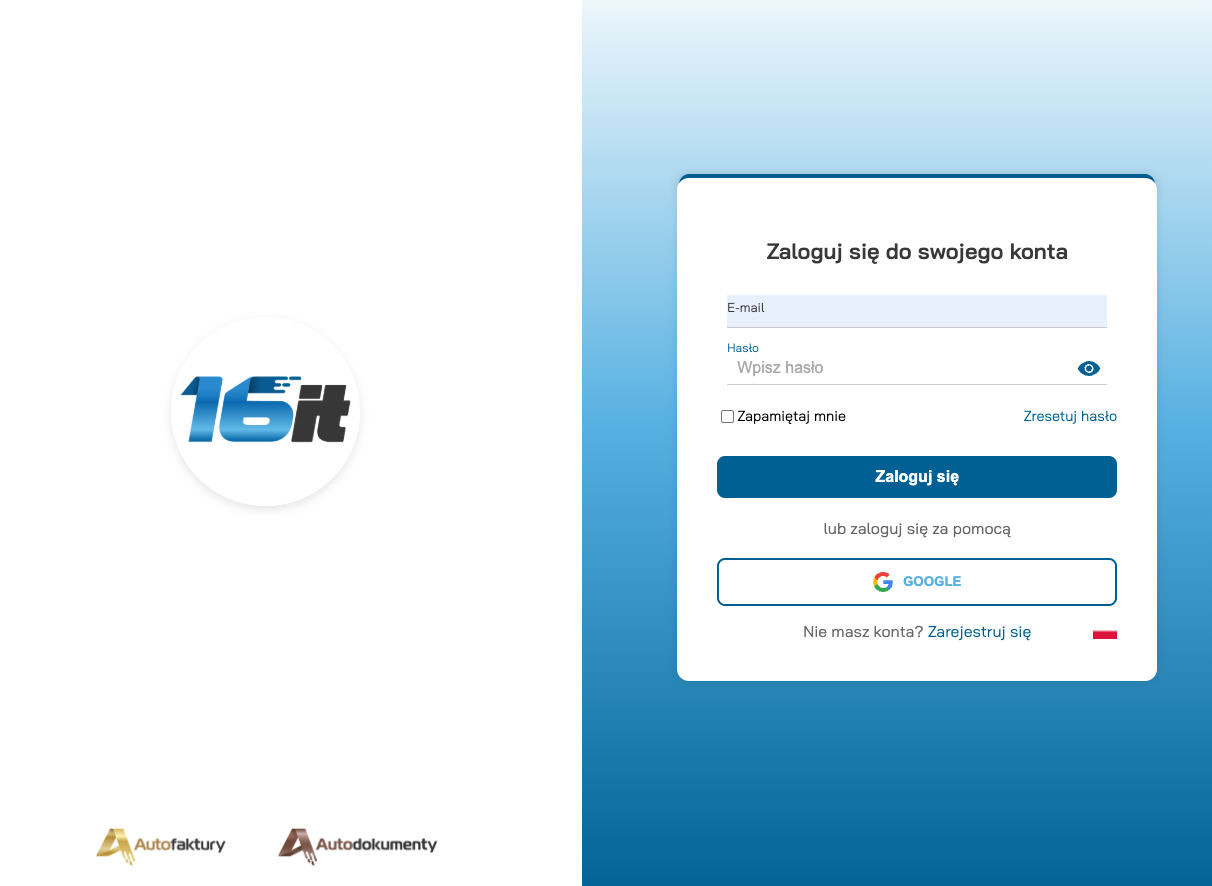
Enter your e-mail and a password (or continue with Google) to create the account.
2. Activate your account
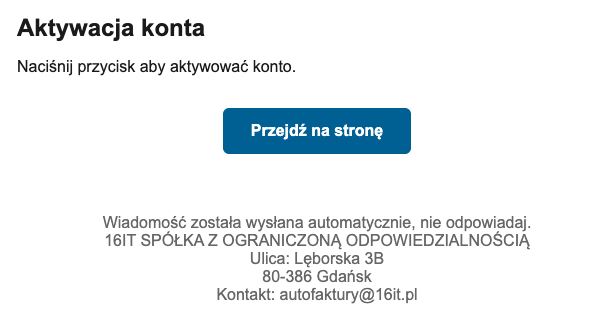
After registering you receive an activation e-mail. Open it and click Go to the site (Przejdź na stronę) to activate your account.
3. Sign in
Go back to the sign-in page and log in with your e-mail and password (or with Google). Use Reset password (Zresetuj hasło) if you ever forget it.
4. Add your company
On your first sign-in you are asked to add a company. Fill in the required fields
(marked with *):
- Country, Tax ID (NIP) — you can pull company data automatically by NIP using the cloud icon next to the field,
- Name and address (city, postal code, street, building number),
- Phone number.
Then click Add company (Dodaj firmę).
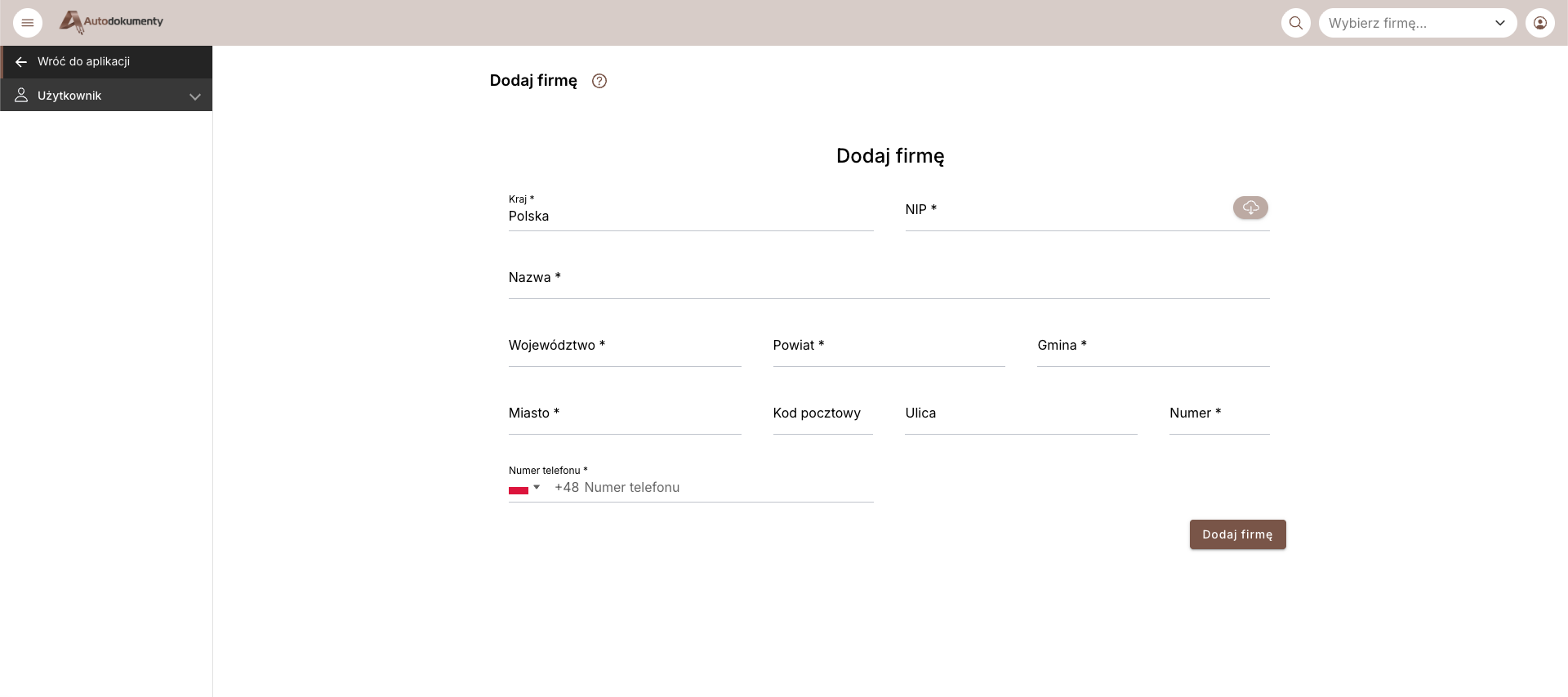
Once the company is saved you can select it in the company picker at the top of the app and start working.
What's next
The next step right after registering is adding your company:
- Adding a company — set up your first company (NIP auto‑fill, address, phone).
Then continue with:
Screenshots are taken from the live application; the interface follows the language selected in the app.