Suppliers (counterparties)
Suppliers are the counterparties (clients, contractors) you put on your documents.
Saving a counterparty once lets you reuse its data and fill the supplier.*
system variables automatically when generating a document.
The suppliers list
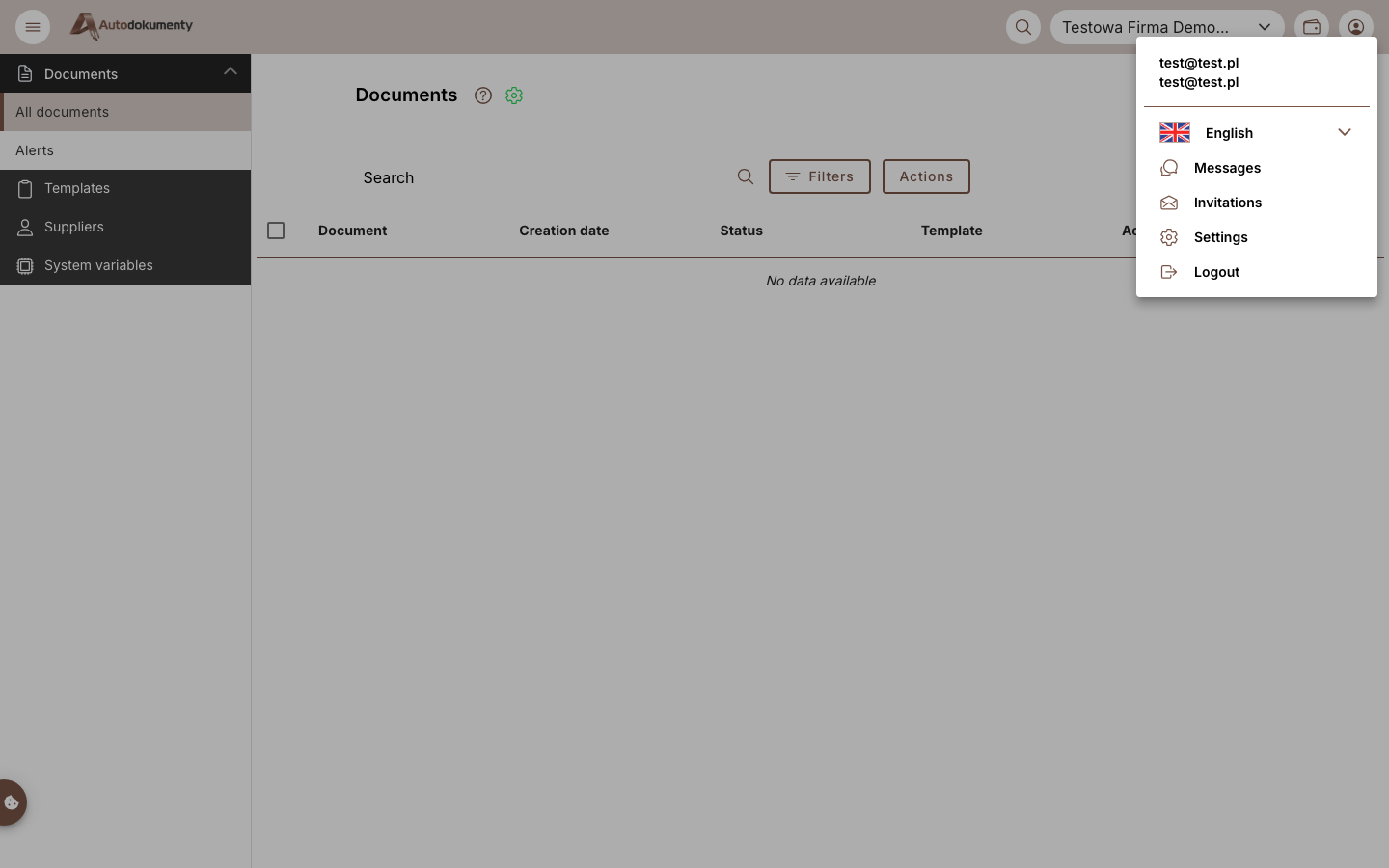
First click your avatar (or the icon in the top‑right corner) and choose Settings from the menu.
Then select Suppliers in the left menu (under Company settings).
The suppliers list opens — each counterparty is listed by Name, along with its NIP, e‑mail and phone.
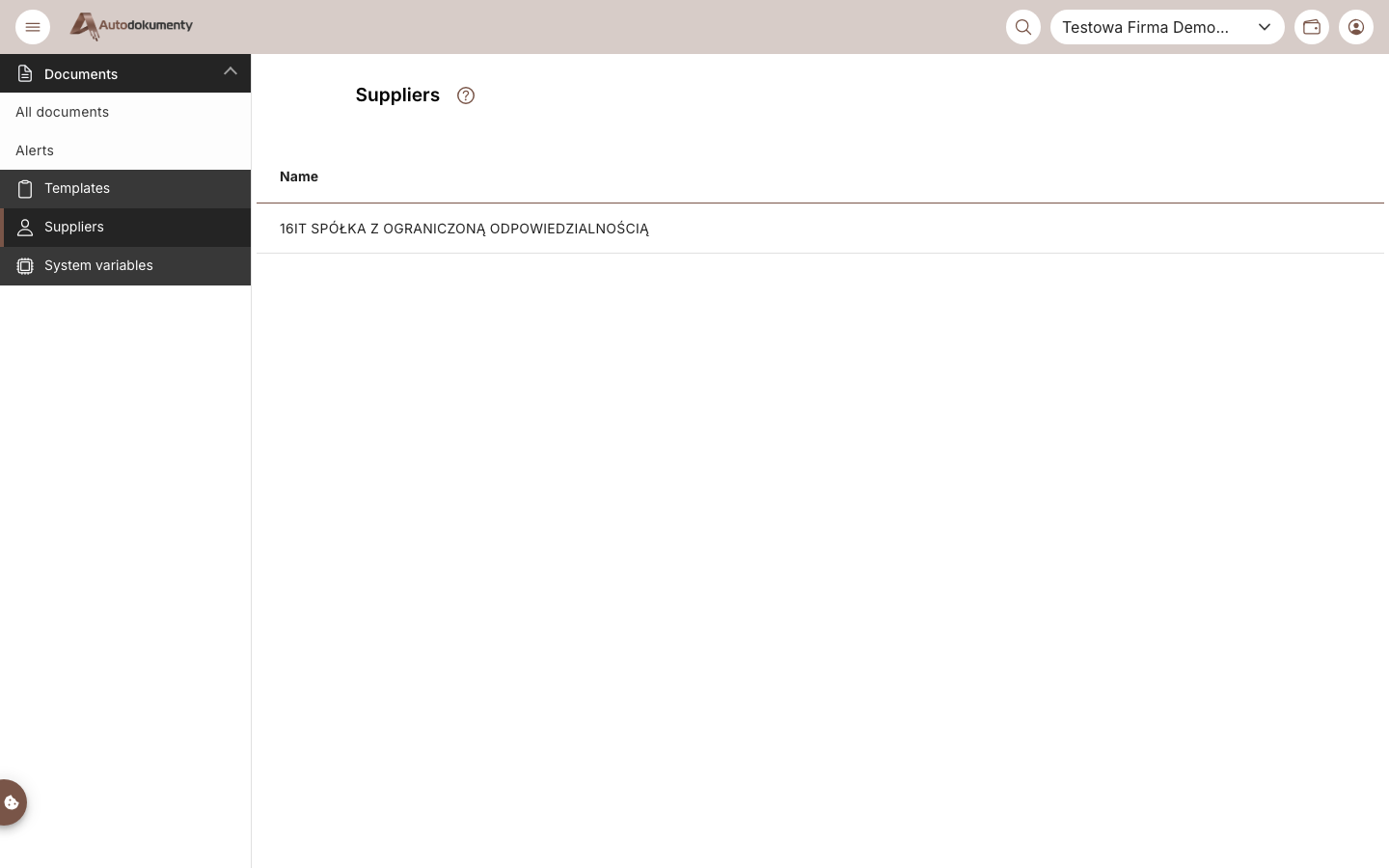
This is where you add and manage suppliers. To add a new counterparty, click Add and fill in its details. You can remove a counterparty with the trash icon in the Actions column. Saved counterparties are then available when you generate documents.
How suppliers are used
When you generate a document, the
Supplier info section lets you pick a saved counterparty (Find supplier) or enter
one ad‑hoc. The chosen counterparty feeds the supplier.* system variables, e.g.:
{supplier.name},{supplier.nip},{supplier.email},{supplier.phone}- address:
{supplier.supplierAddress.city},{supplier.supplierAddress.street}, …
See the full list in Variables.
Reusing a counterparty as a signer
When you add a counterparty you mark it as Private (a natural person) or Business (a company). A counterparty saved as Private can later be selected as a signer when you generate a document with a signature — so you don't have to type that person's details every time. In the Signers section use Find signer to load a saved counterparty, or turn on Supplier as signer (only if private person) to add the currently selected counterparty.
A counterparty marked as Business (a company) cannot be a signing person — only natural persons can sign. See Generating with a signature.
Screenshots are generated automatically from the test environment and are available in Polish and English.