Variables
Variables are placeholders in a template, written in curly braces — {variable}.
When you generate a document from a template, each variable is replaced with a concrete
value. This is what makes one template reusable for many documents.
User vs system variables
| Type | Who fills it | Example |
|---|---|---|
| User variable | You — entered manually when generating the document | {clientName}, {clientEmail} |
| System variable | The app — recognised by key, filled automatically (some you provide) | {date.today}, {supplier.name}, {amount.total} |
Any {key} that is not a known system variable is treated as a user variable.
The template editor classifies each variable automatically and lists them in the sidebar
(see Creating a template).
Data types
Each variable has a data type that controls how its value is interpreted:
| Type | Meaning |
|---|---|
STRING | Text |
DATE | Date in YYYY-MM-DD format |
NUMBER | Numeric value (integer or decimal) |
BOOLEAN | true / false |
System variables — catalogue
Filled automatically
These are resolved by the app when the document is generated — you don't enter them.
| Variable | Type | Value |
|---|---|---|
{date.today} | STRING | Today's date |
{date.yesterday} | STRING | Yesterday's date |
{date.tomorrow} | STRING | Tomorrow's date |
{supplier.name} | STRING | Counterparty name |
{supplier.firstname} | STRING | Counterparty first name |
{supplier.nip} | STRING | Counterparty Tax Id (NIP) |
{supplier.business} | STRING | Business flag/type |
{supplier.accountNumber} | STRING | Bank account number |
{supplier.email} | STRING | |
{supplier.phone} | STRING | Phone |
{supplier.supplierAddress.city} | STRING | Address — city |
{supplier.supplierAddress.street} | STRING | Address — street |
{supplier.supplierAddress.postalCode} | STRING | Address — postal code |
{supplier.supplierAddress.number} | STRING | Address — building number |
{supplier.supplierAddress.country} | STRING | Address — country |
supplier.* requires a counterpartyThe supplier.* variables are filled from the counterparty (Kontrahent) selected
when you generate the document. Manage counterparties under Suppliers.
You provide a value
These system variables are recognised by the app but their value is entered when the document is generated (alongside your user variables):
| Variable | Type |
|---|---|
{date.start} | DATE |
{date.end} | DATE |
{date.payment_due} | DATE |
{amount.total} | NUMBER |
{status.external} | STRING |
{is.priority} | BOOLEAN |
The System variables screen
The app has a dedicated System variables screen — a reference list of every system variable, with a friendly label and a copy button for each key. Open it from System variables in the side navigation.
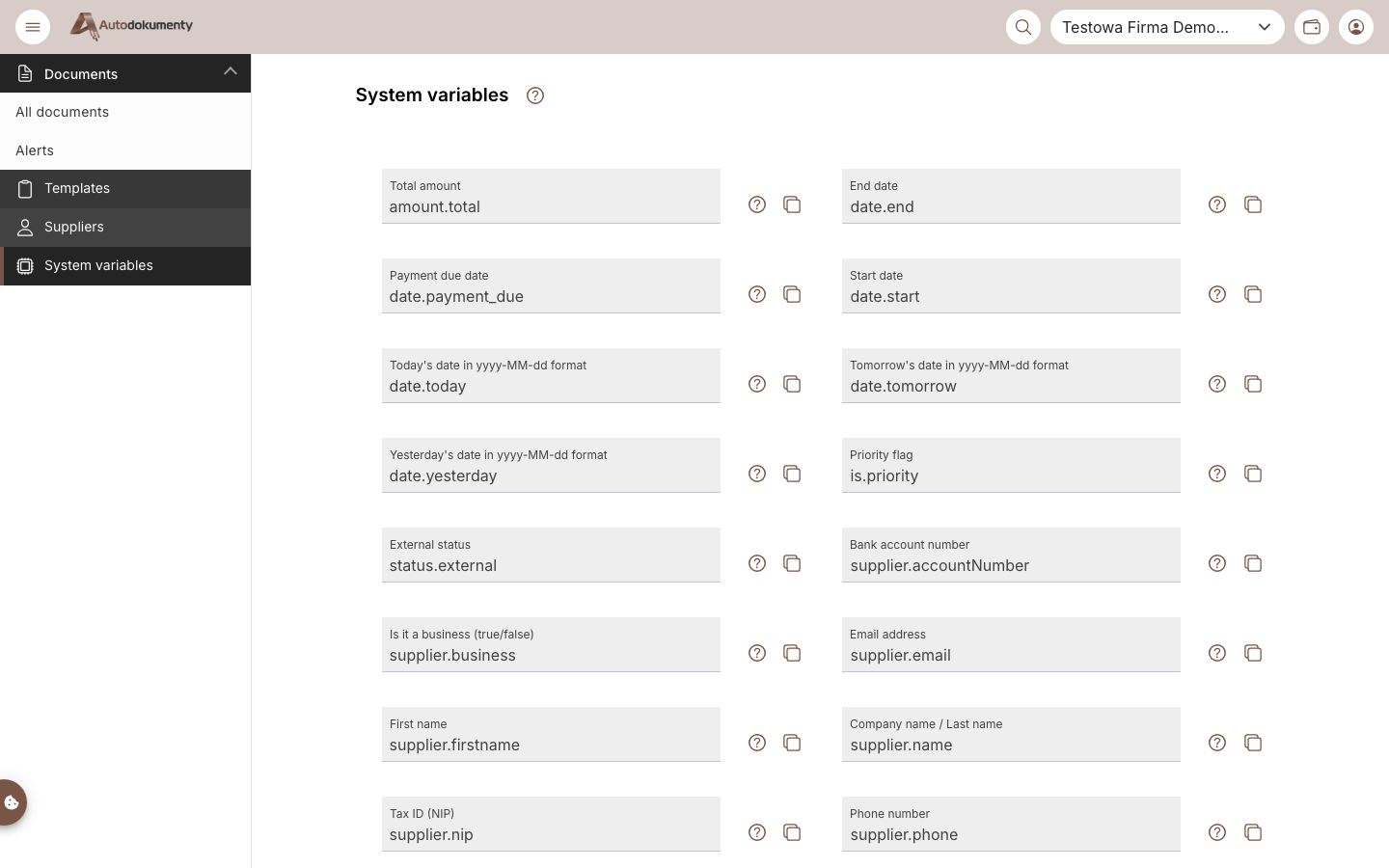
Each entry shows the human label (e.g. Today's date, Total amount, Tax ID (NIP)) and
the key you insert in a template (e.g. date.today, amount.total, supplier.nip). Click
the copy icon to copy the {key} and paste it into the editor.
How variables are filled when generating a document
- The app scans the template for
{...}variables. - It splits them into:
- automatically filled system variables (dates,
supplier.*) — resolved from the current date and the selected counterparty; - to fill — your user variables plus the editable system variables above — presented as a form for you to complete.
- automatically filled system variables (dates,
- The final document is rendered with all values substituted in.
See also
- Creating a template — add variables in the editor.
- Suppliers — manage the counterparties that feed
supplier.*variables.
The system-variable catalogue above reflects the current backend
(autodocuments-be). The source version is recorded in the documentation plan.