In the editor
Write the template content in a rich‑text editor and add variables inline.
Open the editor
- Open Templates and click + Add → Create in editor.
You land in the template editor:
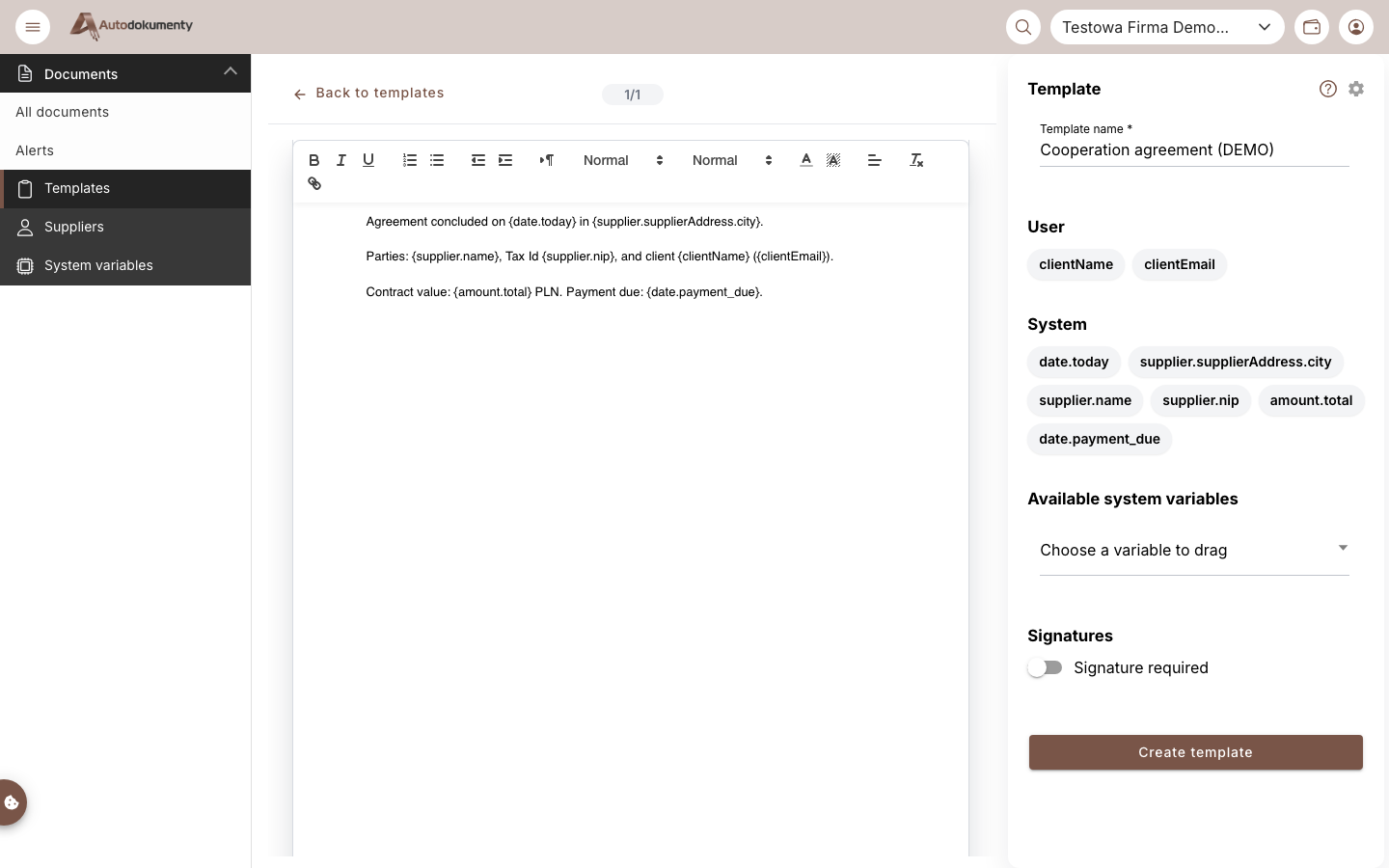
The editor has two parts:
- Left — the rich‑text content area with a formatting toolbar.
- Right (sidebar) — template Name, the lists of used variables, the available system variables picker, the Signatures toggle and the Create template button.
Write the content and add variables
Type your text. Wherever a value should be filled in later, insert a variable using
curly braces: {variableName}. As you type, the sidebar automatically classifies each
one:
- Used user variables — variables you define yourself (e.g.
clientName). Filled in manually when you generate a document. - Used system variables — variables recognised by the app (e.g.
date.today,supplier.name,amount.total). Most are filled automatically.
Each inserted variable is automatically highlighted with a colour in the editor so it stands out from the surrounding text. This colouring is a visual aid in the editor only — it never appears in the generated document.
There are three ways to insert a variable:
- Type it directly in curly braces, e.g.
{supplier.name}. - Drag it from Available system variables in the sidebar — you don't have to remember the exact key.
- Type
/in the content to open a context menu with the system variables. Start typing to filter the list, then pick one to insert it at the cursor. If your text doesn't match any system variable, the menu offers Add as user variable so you can insert your own. To type a literal slash character, press/twice (//).
See the full list in Variables.
Require a signature
Toggle Requires signature in the sidebar if documents generated from this template must be signed.
Save
Give the template a Name and click Create template. It then appears on the templates list, where you can generate a document from it or delete it.
What's next
- Understand variable types and the full system catalogue: Variables.
- Prefer uploading a Word file? Use From a file.
Screenshots are generated automatically from the test environment and are available in Polish and English.