Navigating the app
This page explains how to move around Autosignly: the top bar, the side navigation, and how to reach Settings, switch language, change company or sign out.
The top bar
The top bar is always visible. From left to right:
- ☰ menu button — collapses/expands the left side navigation.
- Autosignly logo — returns you to the application home.
- 🔍 search — opens global search across the app.
- Company picker (Select a company…) — switch the active company.
- 👤 account button — opens the account menu (see below).
On-screen helpers
Most screens show small helper icons next to the page or section title:
- ❔ Help (question mark) — opens a short explanation of what that page or action does.
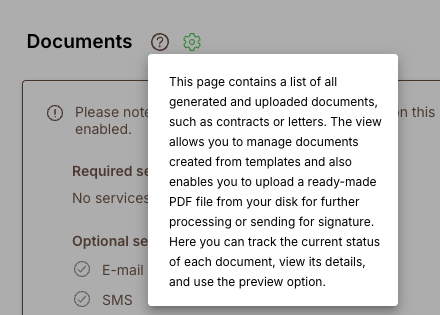
- ⚙️ Gear — lists the services that the page relies on, marking which are required and which are optional, and lets you enable the ones you need. A green gear means the required services are already on.
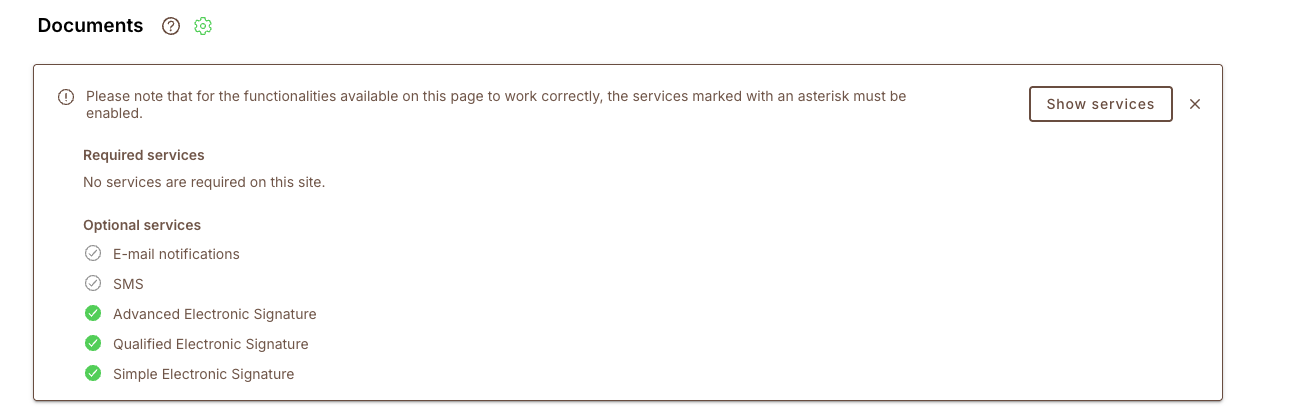
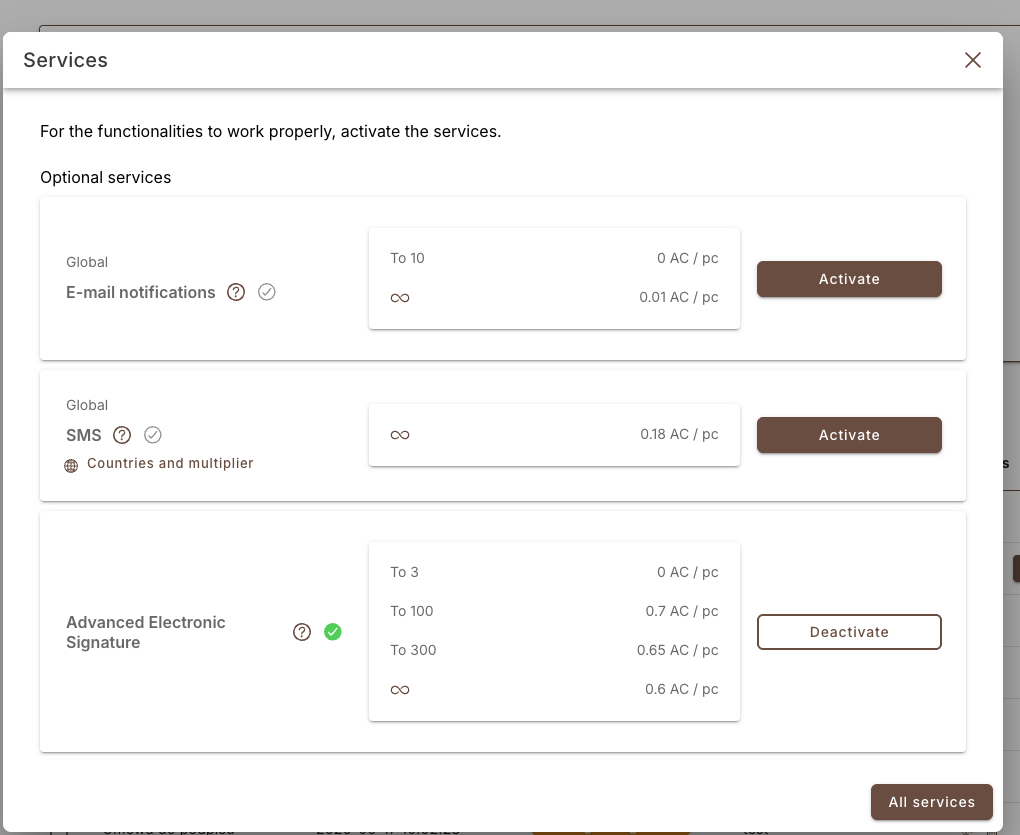
Click Show services to open the full list, where you can Activate or Deactivate each service and see its pricing:
Account menu (Settings, language, logout)
Click the account button (top-right) to open the account menu. From here you can reach the most common actions:
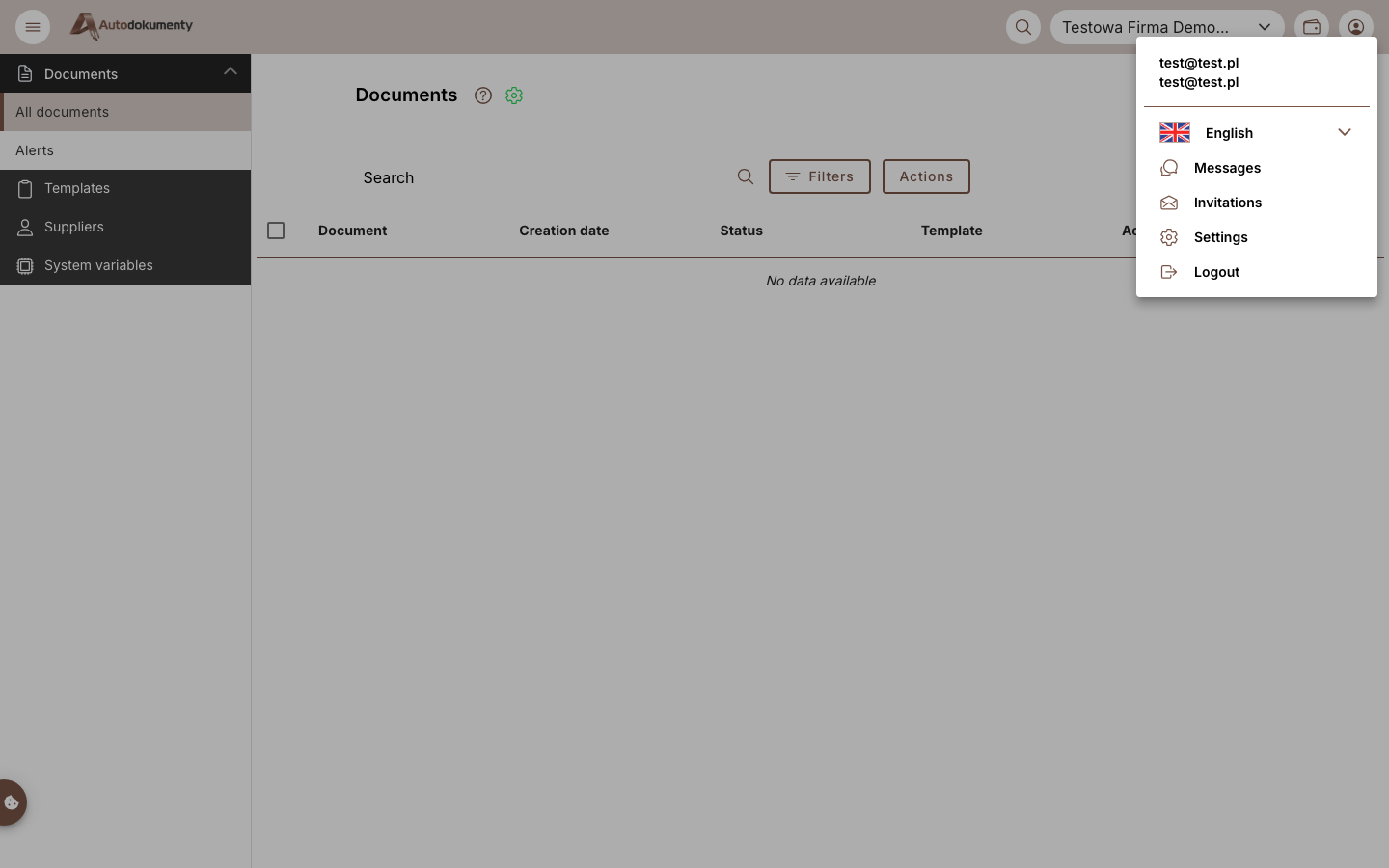
| Item | What it does |
|---|---|
| Language (flag) | Switch the interface language (e.g. English / Polski) |
| Messages | Your in-app notifications |
| Invitations | Invitations to companies/teams |
| Settings | Opens your user settings (see next section) |
| Logout | Signs you out |
The active language is shown with the country flag at the top of the menu. Changing it updates the whole interface immediately.
Settings navigation
Choosing Settings opens the settings area. The left side navigation switches to the User section with all settings pages, and a Return to application link at the top takes you back:
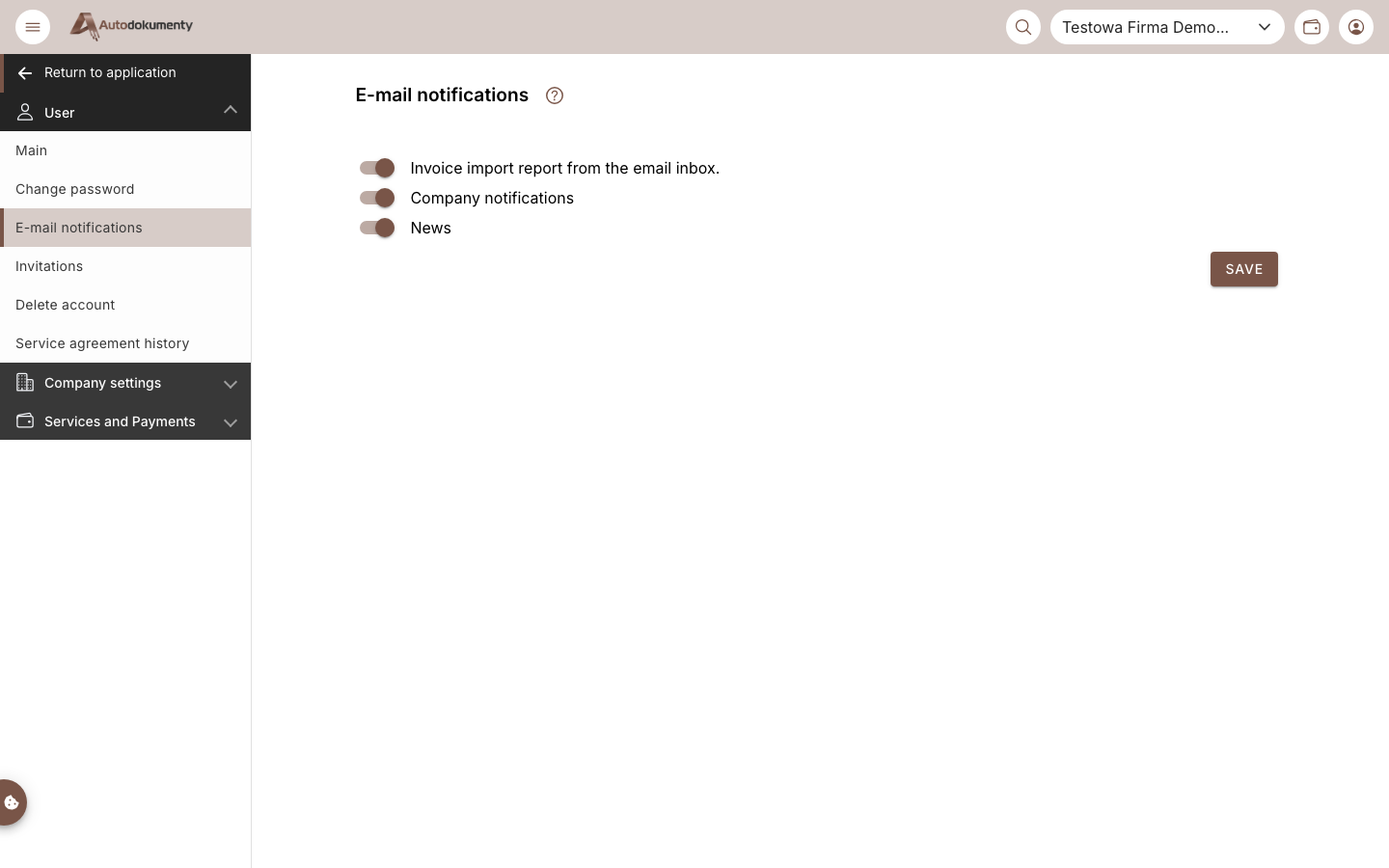
User settings pages:
| Page | Purpose |
|---|---|
| Main | Your profile |
| Change password | Update your password |
| Email notifications | Manage e-mail notifications |
| Invitations | Pending invitations |
| Delete account | Remove your account |
| Agreement history | History of accepted terms |
To leave settings, click Return to application at the top of the side navigation.
Switching company
Use the Select a company… dropdown in the top bar to switch between companies you have access to. The rest of the app (documents, templates, etc.) always reflects the currently selected company.
Screenshots are generated automatically from the test environment and are available in Polish and English.