From a PDF
When the content already exists as a file, add a ready PDF as the document — no template or variables involved.
1. Open the upload form
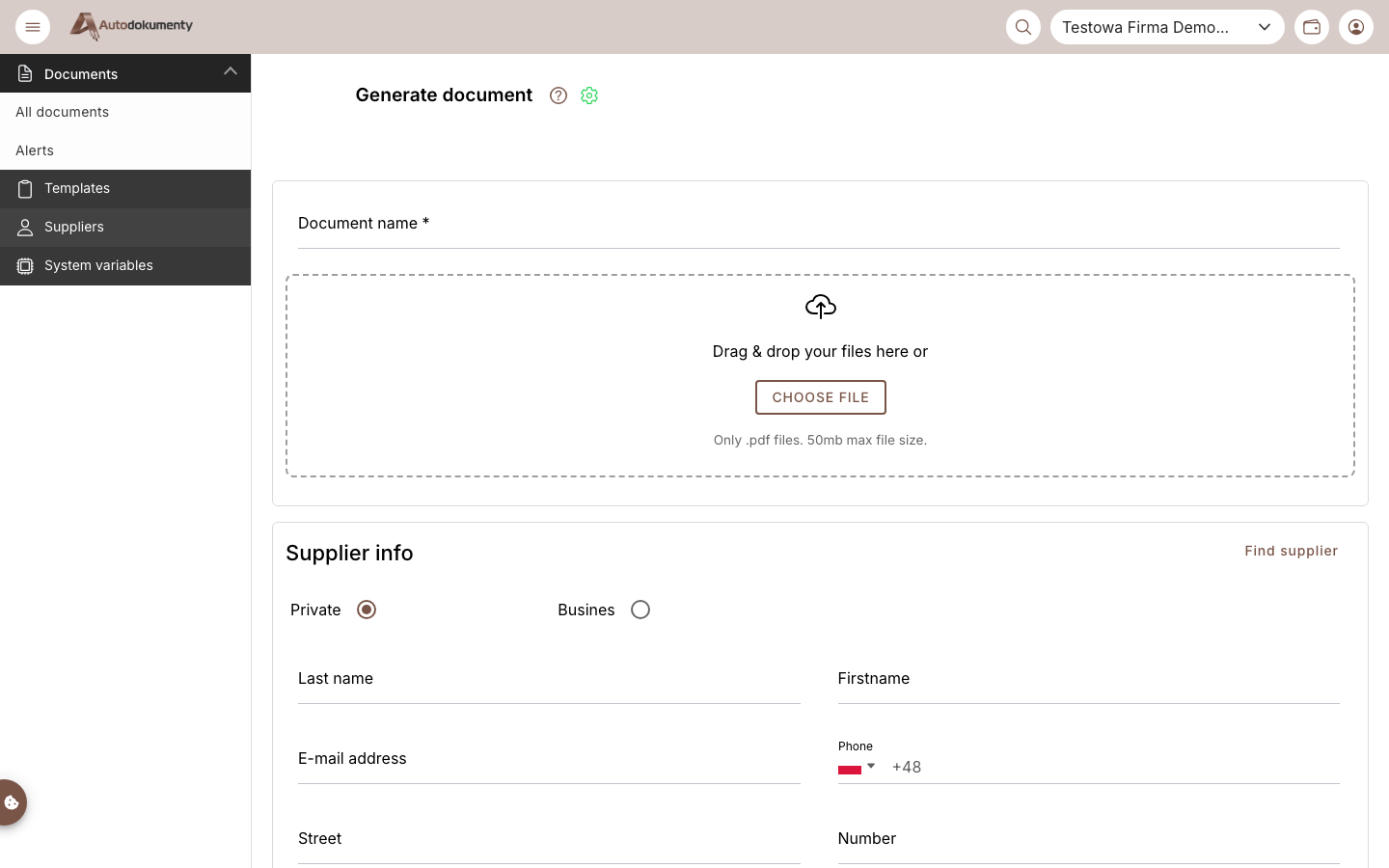
Choose Add PDF document. The Generate document form opens with a file drop zone:
2. Upload the file and fill the data
- Drag & drop your file onto the drop zone, or click Choose file (only
.pdf, max 50 MB). - Enter a Document name.
- Fill in Supplier info (Private/Business, or Find supplier).
The counterparty is the party of the document — it can be a company (Business) or a private person. The generated document is assigned to the selected counterparty and appears on the documents list (and on that counterparty's own document list).
Signing is a separate matter: a document must always be signed by a natural person — a company as such cannot sign. Signers are added in a separate step, when you send the document for signature — not here. Only a counterparty saved as Private can additionally be used as a signer. See Suppliers and Signatures.
3. Generate
Click Generate document. The document is created and appears on the
documents list with status GENERATED, from where you can
send it for signature.
Turn on Required signature before generating to choose a signature type and send it straight for signing — see Generating with a signature.
What's next
- Send the document for signature: Signing.
- Generate from a template instead: From a template.
Screenshots are generated automatically from the test environment and are available in Polish and English.