Online verification
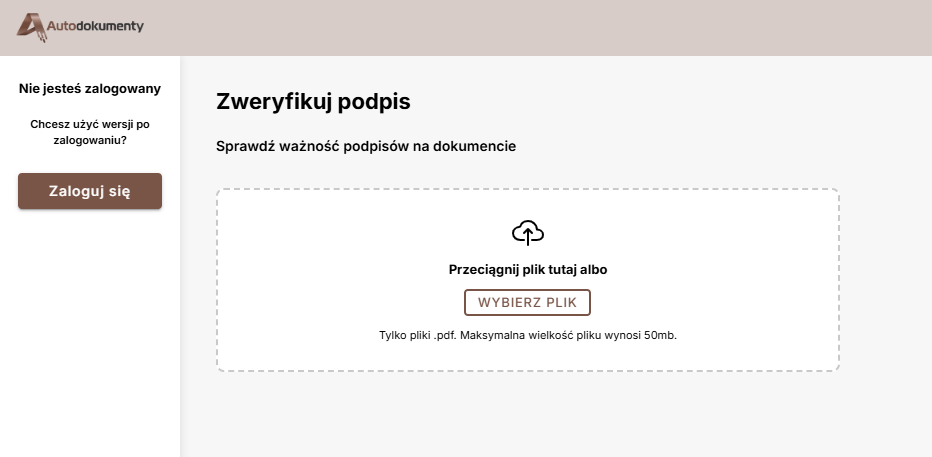
Anyone can check whether the signatures on a PDF are valid — no login required. Upload the signed file and Autosignly returns a result card for each signature in the document.
For inspecting raw metadata or PAdES details inside the file itself, see Manually validate a PDF.
How to verify a document
- Open the public signature verification page.
- Upload the signed PDF — drag it onto the drop zone or click Choose file.
- Wait while the file is analysed (Verifying signatures…).
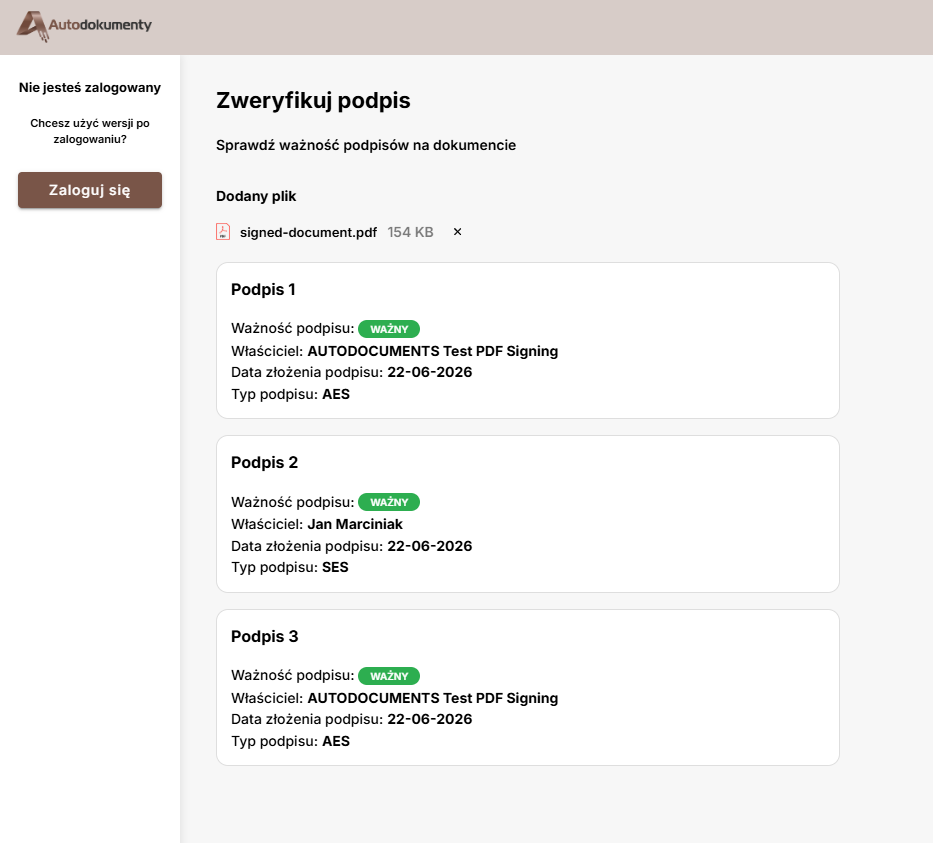
- Review the Signature 1, Signature 2, … cards below the upload area.
After signing in, the same feature is available at
Documents → Signature verification (/documents/signature-verification). The public
page works the same way and does not require an account.
File requirements
- Format: PDF only (
.pdf) - Maximum size: 50 MB
- Other file types or oversized files are rejected before verification starts
Result fields
Each signature found in the PDF is shown as a separate card:
| Field | Meaning |
|---|---|
| Signature validity | Outcome of cryptographic verification — see below |
| Owner | Signer's name (from Autosignly metadata or the certificate) |
| Signature date | Signing time from the signature, timestamp, or XMP metadata |
| Signature type | SES, AES, or QES when Autosignly can determine it |
Signatures are listed in document order (including invisible integrity seals and visible signer stamps).
Validity statuses
VALID
The signature passed verification:
- Autosignly signatures — signed with a trusted 16it certificate, the document was not modified after that signature, and DSS validation succeeded.
- External qualified signatures (QES) — a qualified electronic signature that passed full cryptographic validation.
INVALID
The signature failed verification — for example the document was altered after signing, the certificate chain is broken, or the cryptographic check did not pass.
UNKNOWN
The service cannot verify this signature. This usually applies to signatures that are neither from the Autosignly platform nor a qualified (QES) signature.
The page then shows a note that validation requires at least one of:
- a signature created by the 16it system (Autosignly SES/AES), or
- a qualified electronic signature (QES).
Third-party advanced or simple signatures from other providers may appear as UNKNOWN even if they look correct in a PDF viewer.
What is checked
The online verifier:
- Reads all PAdES signatures embedded in the PDF (DSS validation).
- For Autosignly documents, matches signatures to XMP metadata (
autodoc:signatures) to resolve signer name, type, and signing time. - Confirms whether each Autosignly signature uses a trusted 16it signing certificate.
- Checks document integrity after each signature (no post-sign modification).
The uploaded file is scanned for malware before processing. It is used only for verification and is not stored as a new document in Autosignly.
Online vs manual verification
| Method | What it checks | Login required |
|---|---|---|
| Online verification | Signature validity, signer name, signing date, signature type (PAdES + Autosignly metadata) | No |
| PAdES panel in PDF viewer | Cryptographic signature validity, modification after sign | No |
| XMP inspection (ExifTool, ExifToolGUI) | Raw signer metadata in the file (autodoc:signatures) | No |
For day-to-day checks, use online verification. For audits, forensic review, or integration testing, inspect the PDF directly — the PAdES panel and XMP extraction as described in Manually validate a PDF.
For the signing process overview, see Signing documents.